Miscellaneous Menu
Start Joist Run
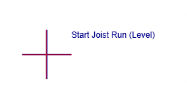
Set point to pull spacing from for your I-joist layout.
Allows users to set where the joist on center spacing starts from. Left click where user would like to place Start Joist Run, and once placed this location will be used for all spacing unless otherwise defined with the right-click Start Joist Run placement tool.
If users do not set Start Joist Run, the program will use the Set Origin set by default.
If users do not start from 0,0 when drawing walls once the walls have been placed user can then set the origin to beginning of wall drawing.
Set Origin

Allows to move origin start point (red plus sign on drawing)
Origin is 0-0 and can relocate when doing a drawing, or reposition.
This is needed for viewing 3D images to ensure they show up on screen
Excludes

This feature allows user to select specific products or items that they choose not to appear on the Material List/Quote Takeoff/Pricing.
Dimension Line
Can automatically dimension complete layout or give the user the capability of dimensioning specific areas. Gives measurements along the drawing.
Right click for dimension line input features:
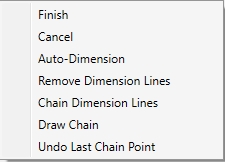
Finish- completes the command.
Cancel- cancels a current dimension drawing command.
Auto-Dimension- dimensions entire layout automatically.
Remove Dimension Lines- removes all existing dimension lines. (user can select a specific dimension line and hit the delete key to remove that specific dimension line from the layout)
Chain Dimension Lines- use this command to continuously draw point to point to point, and the program will automatically adjust and line up to a visible location.
User must right click after selecting dimension line to access the Chain Dimension Lines or the Draw Chain menus.
Draw Chain- Draws single point to point dimension lines requiring the user to pick the dimension line orientation before execution.
Undo Last Chain Point- undoes the last dimension that was input.
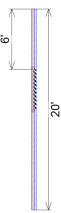
Below image is an example of the dimension lines:
Joist Fill Boundary
Allows user to define a boundary that closes or cuts off a specific joist region. (Example: joist fill boundary will not allow a joist to go through it. It is used to control where a joist may start or end in a specific area of the building.)
Floor Openings
This allows the user to select an area that they do not want tributary loading applied to members around that area.
Decking

Allows user to automatically generate decking throughout the level or input specific decking areas using boundary points. This will give a decking square footage and count of decking. The count and material can be reflected in the Material List.
Selecting decking and right clicking will give the menu below:
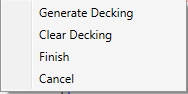
Generate Decking Automatically places decking throughout a floor level.
Clear Decking Clears decking on the current level.
Finish Executes the command.
Cancel Cancels the command.
Additional Product

Custom
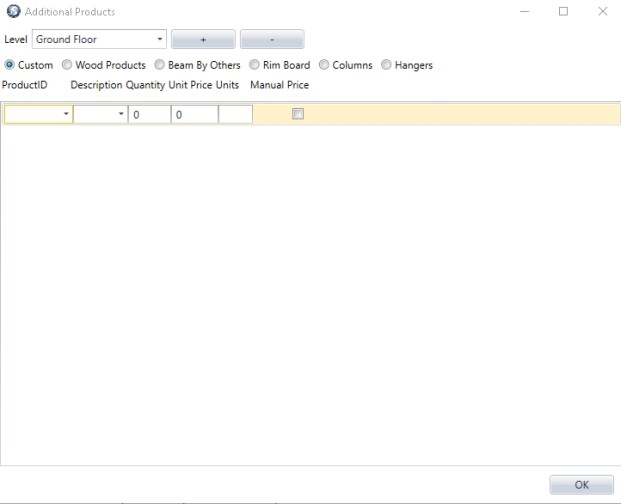
Allows for additional materials that are not automatically generated by isPlan® to be added to the Reports. (Materials List, Quote, Cutting, and TakeOff) These materials can be items such as glue, additional sheeting, furring materials, etc. (Items that the software does not generate)
Below are sample menus for adding or deleting additional products:
Wood Products
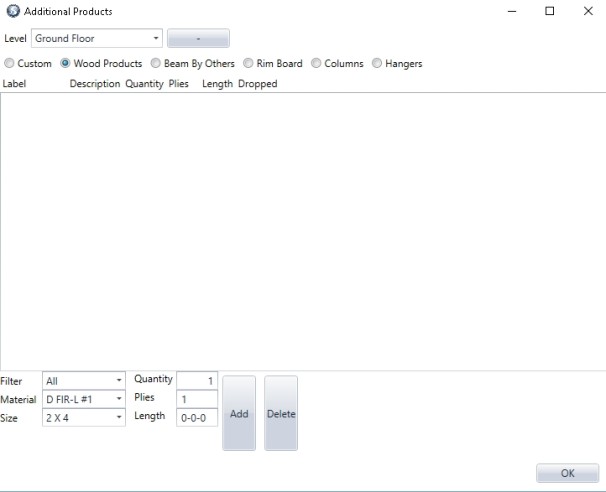
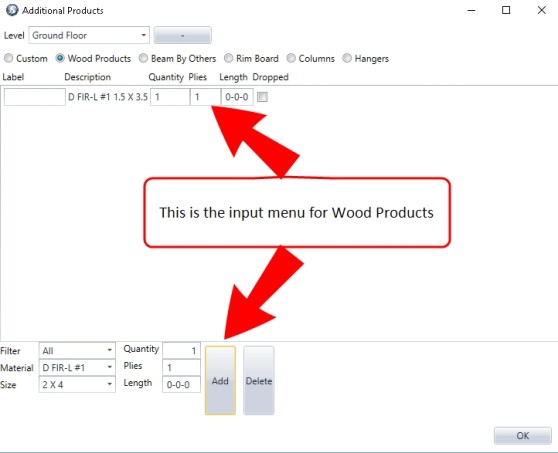
These additional products are part of the current Materials List that the user uses for design and engineering of a framing plan/layout.
Beam by Others
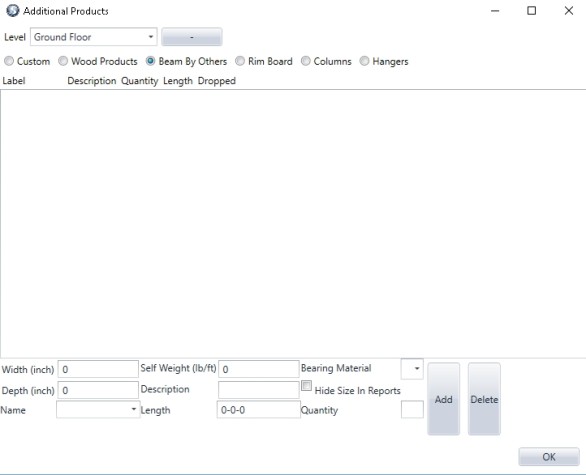
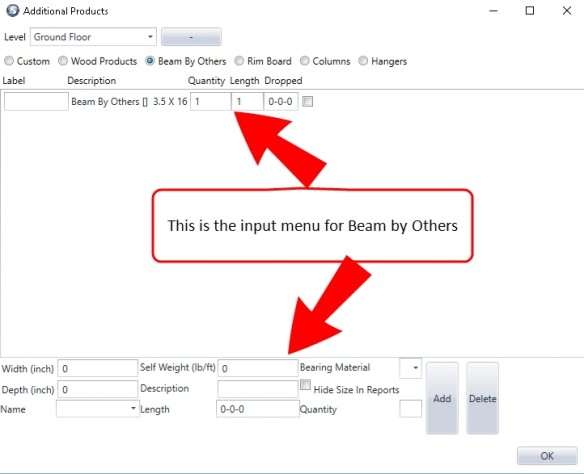
This menu gives the capability for an operator to input a user defined product that has not been engineered by the software. These products will show up in the Reports. (Materials List, Quote, Cutting, and TakeOff)
Rim Board
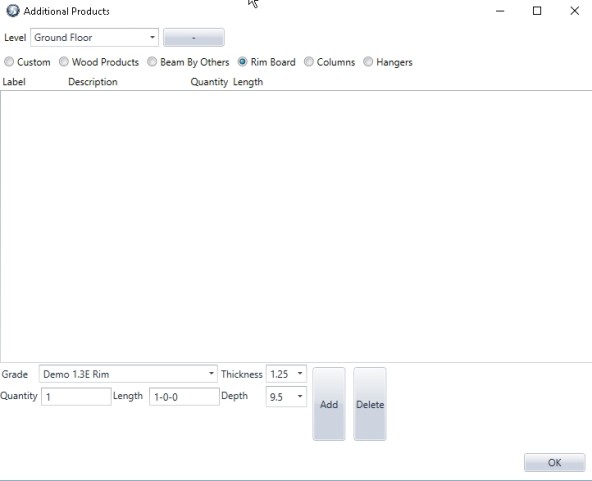
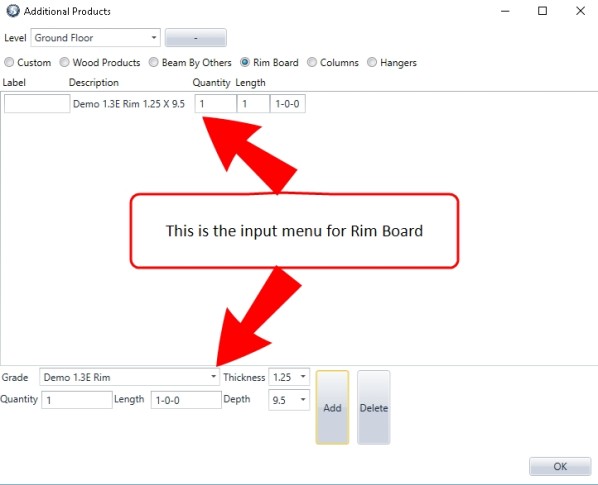
These additional Rim Board products are part of the current Materials List that the user uses for design and engineering of a framing plan/layout.
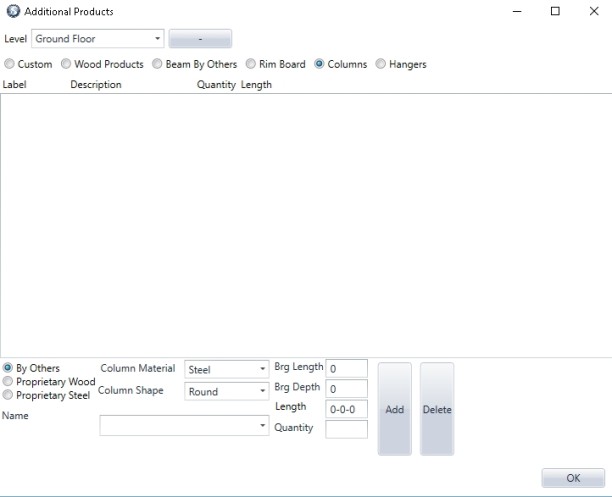
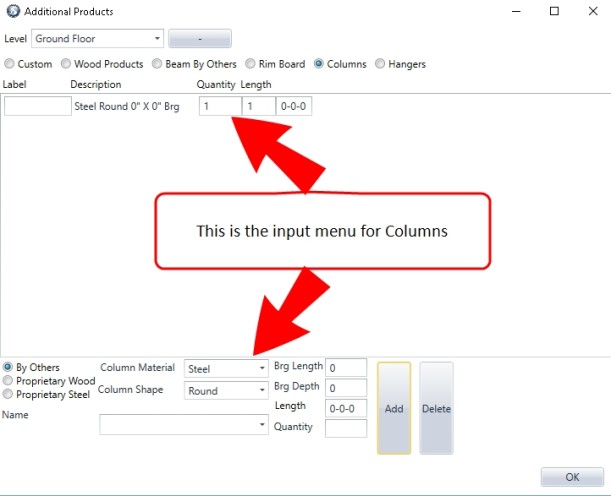
Columns
These additional Column products (Proprietary Wood) are part of the current Materials List that the user uses for design and engineering of a framing plan/layout. It also can add By Others and Proprietary Steel to the Reports as well.
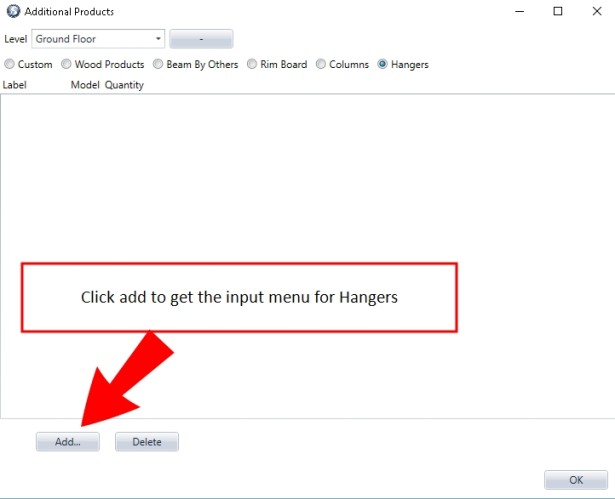
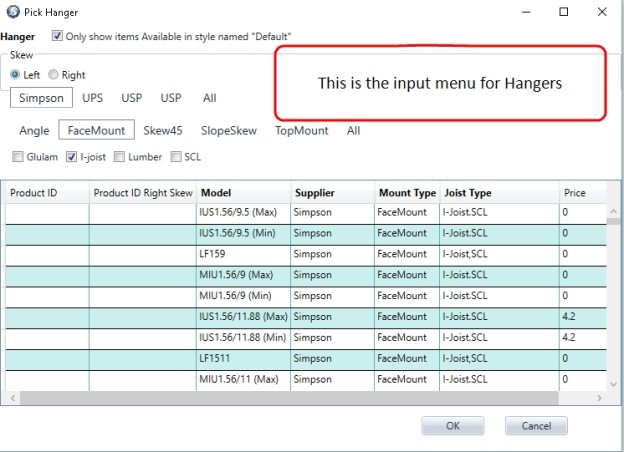
Hangers
These additional hanger products are part of the current Materials List that the user uses for design and engineering of a framing plan/layout.
Split

This function will split a wall, rim board, beam, joist, and ledger at a user specified location applied along the member.